

Chrome Update Impacts Zoom Conferencing and Photo Roster Tool
Posted in News
Google Chrome version 142, updated on October 28, 2025, added a new permission prompt for sites that make connections to a user’s local network as part of the Local Network Access specification.
When using Chrome on SaxaNet, GuestNet and Georgetown’s VPN both the Zoom Conferencing and Photo Roster apps in Canvas will display a pop-up window with the text “Look for and connect to any device on your local network,” and asking you to take action to ‘Allow’ or ‘Block’ the request.
In order for the Zoom Conferencing and Photo Roster apps in Canvas to function properly in Chrome while accessing them via SaxaNet, GuestNet, and Georgetown’s VPN you must ‘Allow’ the request when prompted.
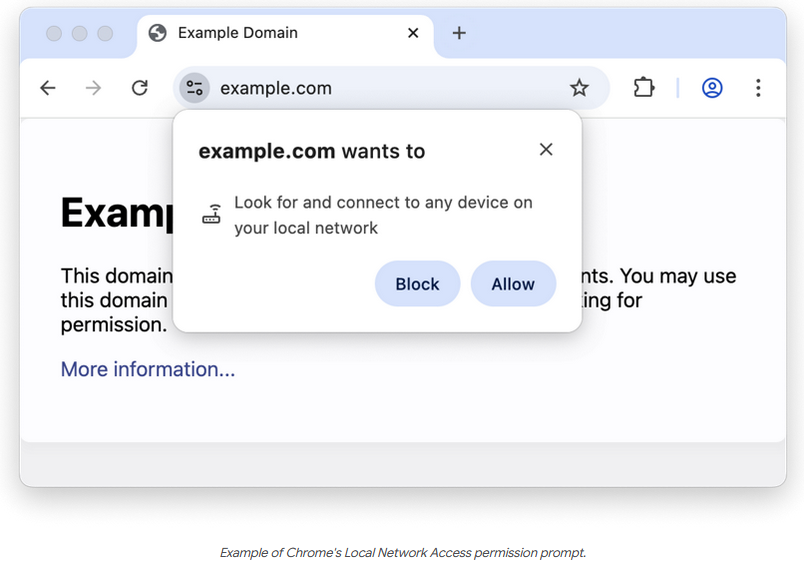
If the pop-up window with the prompt to ‘Allow’ or ‘Block’ never appears in your Chrome browser, and you receive an error icon with a message displayed on the Zoom Conferencing or Photo Roster page that states, “the connection is blocked because it was initiated by a public page to connect to devices or servers on your local network” then you will need to manually enable the Local Network Access setting (or switch to another browser). See below for details.
Enable the Local Network Access Setting in Chrome
If the pop-up window with the prompt to ‘Allow’ or ‘Block’ never appears in your Chrome browser, and you receive an error icon with a message displayed on the Zoom Conferencing or Photo Roster page the states, “the connection is blocked because it was initiated by a public page to connect to devices or servers on your local network” then you will need to manually enable the Local Network Access setting.
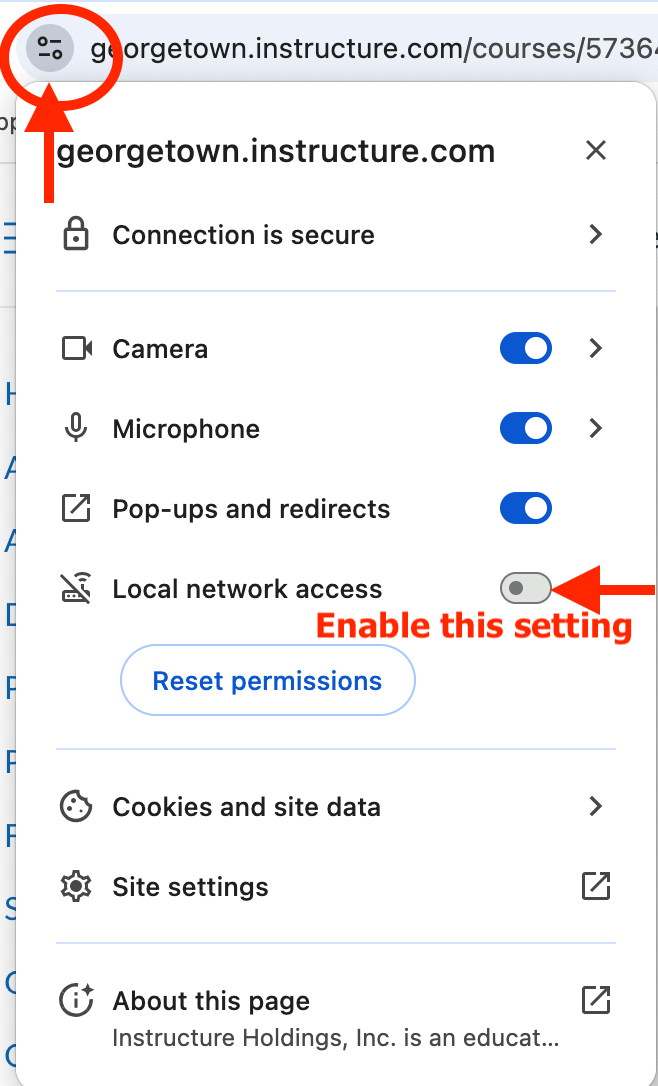
To manually enable the Local Network Access setting first go to the Zoom Conferencing or Photo Roster page in your Canvas course where you received the error icon and message.
Then, in the address bar that displays the URL, click the view site information icon, which will open a drop down menu. Finally, on the drop down menu that displays information for “georgetown.instructure.com” click the button to enable “Local Network Access” and reload the page.
FAQs:
- What are my options if I do not want to enable this setting in Chrome?
- Use a different browser (Firefox, Safari, Edge).
- Why didn’t the pop-up window appear for me so I can ‘Allow’ or ‘Block’ the request’?
- It is possible that you already denied the request previously on when accessing a different page (other than Canvas), or you have manually disabled the permission in your Chrome settings.
- What happens when I press ‘Block’ on the pop-up window?
- Specific websites are blocked from communicating with devices (like printers, smart devices, or local servers) on your network, which stops features like casting, local authentication tools, or some web app functionalities from working, as it enhances privacy but breaks trusted local interactions.
- Who do I contact if I have questions or concerns about this setting in Chrome?
- contact help@georgetown.edu or call 202-687-4949